
Home
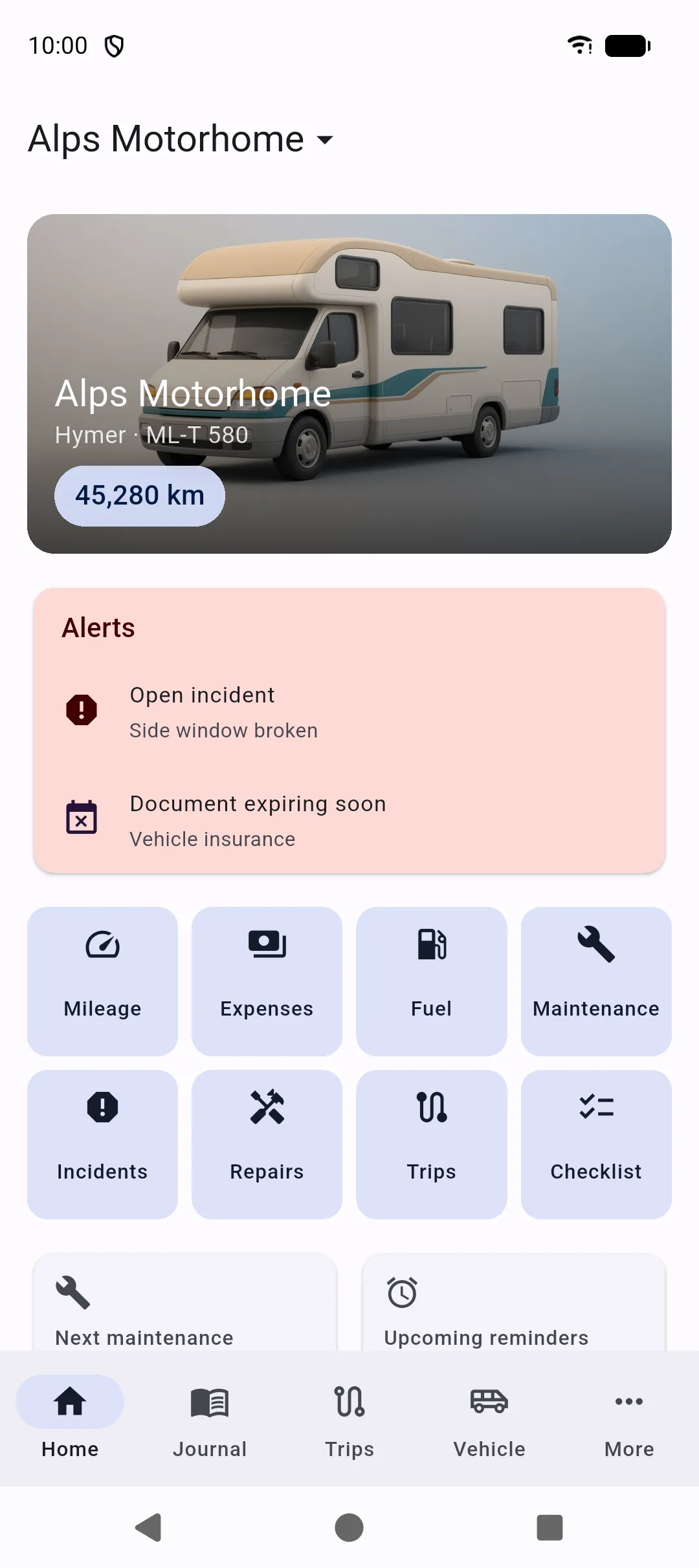
Home is the dashboard for the vehicle you are using. If no vehicle exists yet, the screen asks you to create one.
Vehicle header
Section titled “Vehicle header”The top of Home is a photo of the selected vehicle, with its name and make/model overlaid. Tap the photo to open the vehicle profile.
Current mileage sits on a chip under the name. Tap it to add a new odometer reading.
If you have several vehicles, the app bar title is the current name with a menu. Choosing another vehicle uses it for Home, Journal, Trips, More, and the rest of the logbook — the same action as Use this vehicle on the Vehicle tab.
Alerts
Section titled “Alerts”Alerts appear when something needs attention, in this order:
- Expired documents
- Overdue maintenance
- Overdue reminders
- Open incidents
- Documents expiring soon
Tap an alert to open the related record.
Quick actions
Section titled “Quick actions”Shortcuts under the header jump to common tasks:
- Add mileage
- Add expense
- Add fill-up
- Add maintenance
- Add incident
- Add repair
- Start trip
- Open checklist
Status tiles
Section titled “Status tiles”The grid summarises the next maintenance, upcoming reminders, the trip in progress, the last fill-up, Annual expenses (total for the current year), open incidents, inventory item count, and expiring documents. Each tile opens the matching list.