Getting started
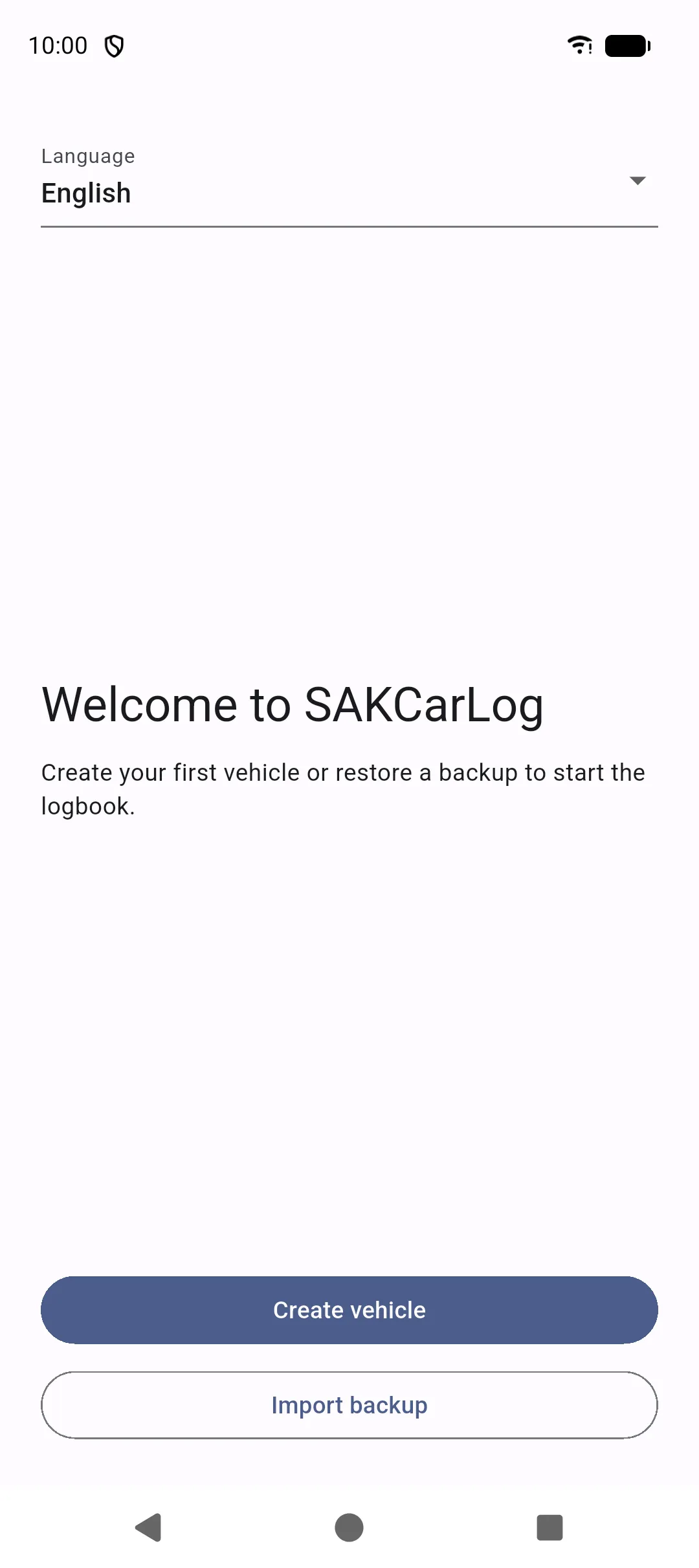
SAKCarLog works without an account. The first time you open the app, you choose a language, then either create a vehicle or restore a backup from another phone.
Choose a language
Section titled “Choose a language”On the welcome screen, pick the language for labels and dates. You can change it later in Settings. SAKCarLog currently includes English, French, German, Italian, Spanish, Portuguese, Portuguese (Brazil), Dutch, and Polish.
Create your first vehicle
Section titled “Create your first vehicle”- Tap Create vehicle.
- Enter at least a name. Add make, model, type, plate, VIN, and current mileage if you have them.
- Choose a vehicle type (motorhome, van, converted van, caravan, car, motorbike, or other) and a fuel type.
- Save. SAKCarLog opens Home for that vehicle.
You can add more vehicles later from the Vehicle tab. See Vehicle.
Or restore a backup
Section titled “Or restore a backup”If you already used SAKCarLog on another device:
- On the welcome screen, tap Import backup.
- Select the backup file you exported earlier.
- Enter the backup password (at least 8 characters when the file was created).
- Confirm. Existing data on this device is replaced.
Details and passwords are in Backup and restore.
Photos and files
Section titled “Photos and files”Where a record can hold a photo, PDF, or other attachment, SAKCarLog shows the same two actions:
- Import a file — opens the system picker so you choose one file (image, PDF, or another type the screen allows).
- Take a picture — opens the camera.
Files stay in the app’s encrypted local storage. SAKCarLog does not ask for unrestricted access to all files; you pick what to attach, and you grant camera only when you take a picture.
The vehicle profile photo uses Photo. Documents, invoices, journal notes, trips, repairs, incidents, tires, and similar records use Import a file and Take a picture.
What happens next
Section titled “What happens next”- Data stays on the phone. There is no SAKCarLog cloud or sign-in.
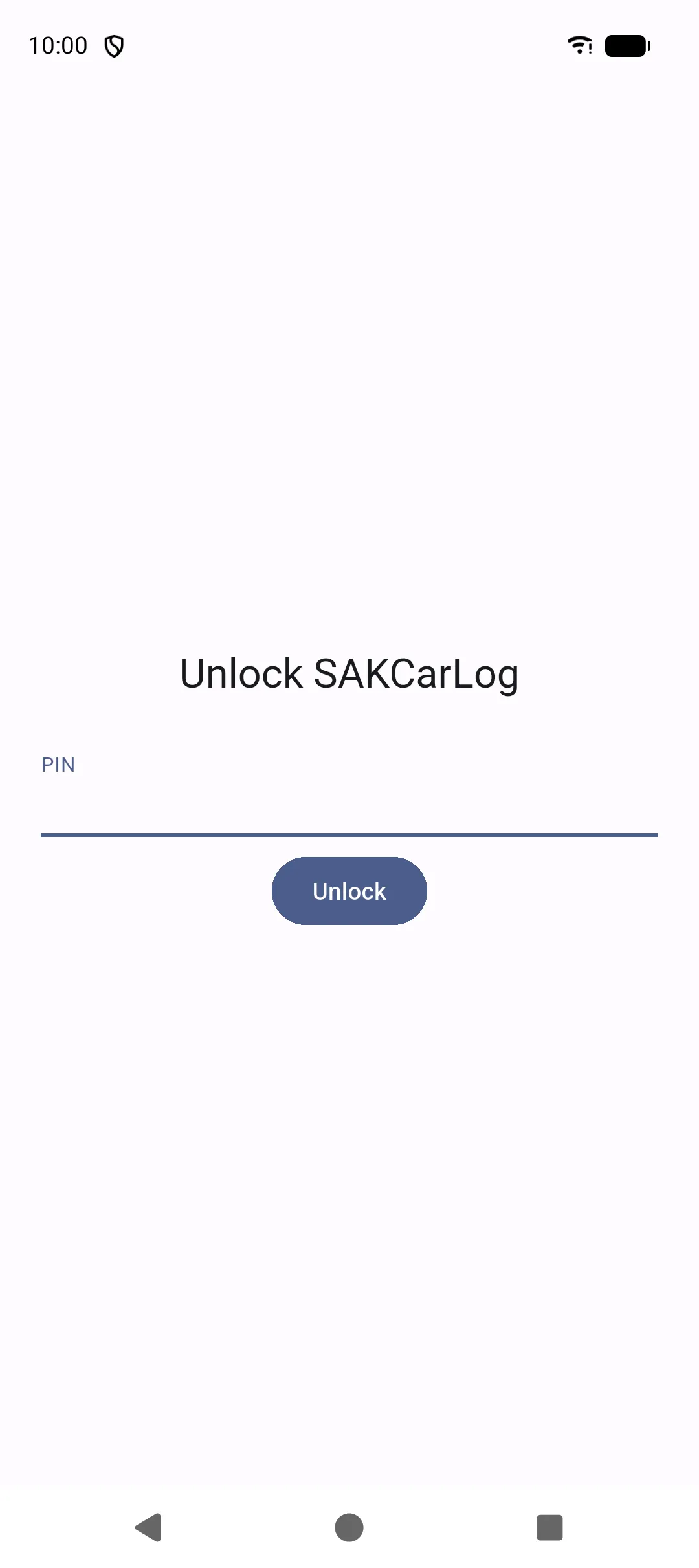
- Grant camera, notifications, or biometrics only when you need photos, reminders, or a lock.
- Open Navigation to see where each feature lives.